
Run corporate clients like a TMC, with a portal that carries your brand.
Your corporate clients raise trips, approve them and pick a quote in a portal with your agency's name and logo. You get policy checks, GST billed to the right GSTIN, credit control and duty of care on the same desk.
The 14-day trial runs on Growth, which doesn't include the corporate desk. Start a trial for quotes, invoicing and visas
One loop, from a client's request to their monthly statement.
Corporate clients don't behave like holiday enquiries. They have policies, approvers, budgets, several GSTINs and a finance team waiting for clean paperwork. TourBrain runs that loop with them, not around them.
Request
Raised in the client's portal or by your team, checked against policy as it's typed
Approval
The client's approvers decide, with cost and policy flags in front of them
Options
You share up to three quotes and the client picks one
Booked trip
Itinerary, tickets and vouchers show up in the portal
Invoice
Per trip, or one consolidated invoice for the month
Statement
Statement of account, ageing and the ITC register

Each client gets a portal with your name on it.
The portal shows your agency's name, logo and colours, and emails to the client's people come from your agency's name, with replies going to you. Everyone sees a home screen shaped around their role.
Made for phones first
Approvers decide from their phone. The portal can be added to the home screen like an app.
Push and email notices
Each person can turn on push notifications and choose which emails they get. Every notice opens the right page.
Proper logins
Invite emails with a set-password link, forgotten-password reset, a forced password change on first login and lockout after repeated wrong passwords.
Visa and passport requests from the portal arrive as ready files on your visa and passport desk.
Admin
Adds and removes the company's portal users and resets their passwords. Sees everything the travel desk sees.
Travel desk
Raises trips, visas and passports for anyone on the roster, keeps the roster, and handles billing, reports and duty of care.
Approver
Approves, rejects or sends back requests with the cost and policy flags in view, and sets a delegate when away.
Member
Raises their own trip requests, follows them to booking, and keeps their own traveller profile up to date.
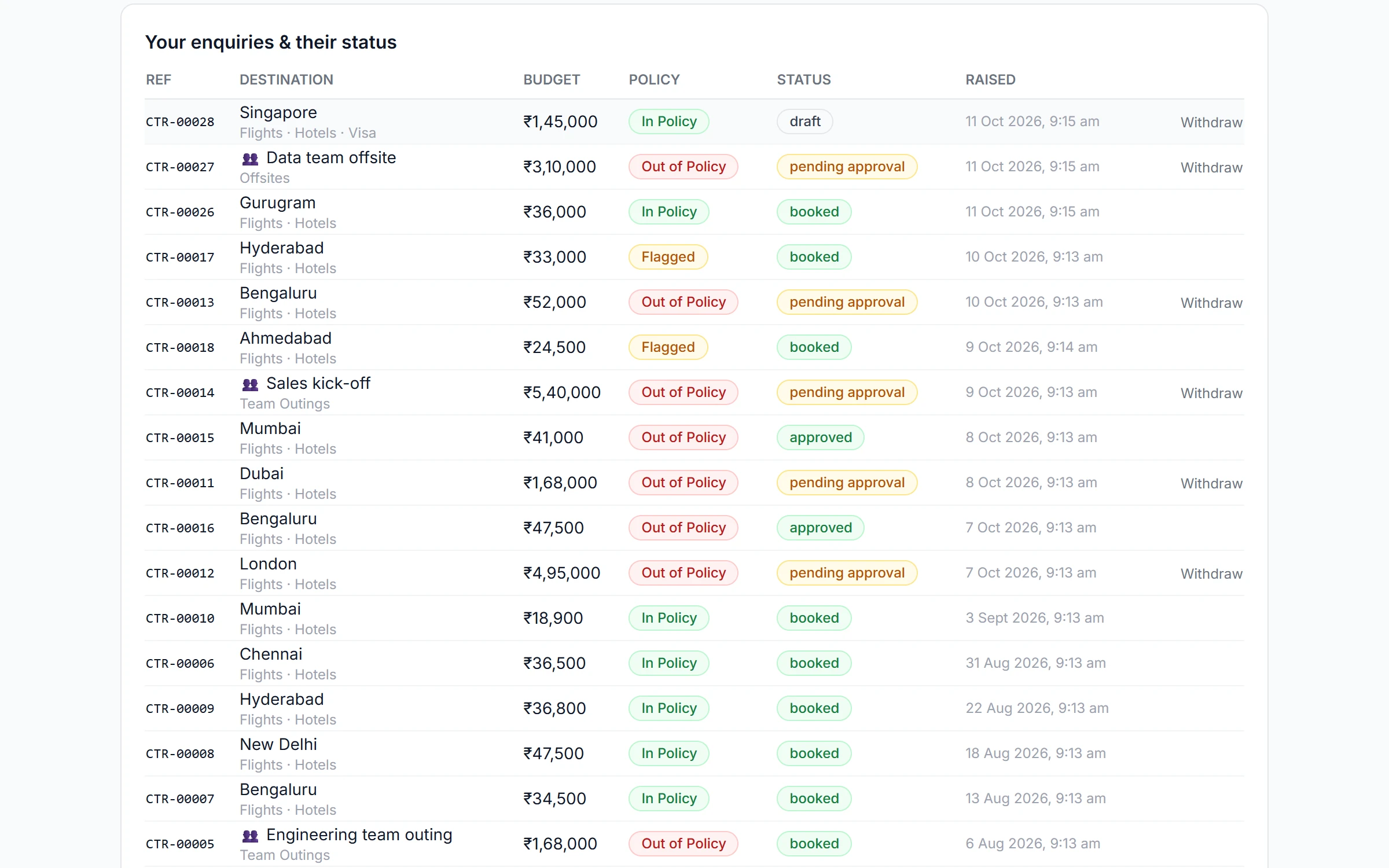
Requests that check the policy before they're sent.
A traveller or the client's travel desk raises a trip in the portal, for one employee or a group. The form shows the policy result while they fill it in and asks for a justification when a rule needs one. On submit, the request goes straight into the right approval chain.
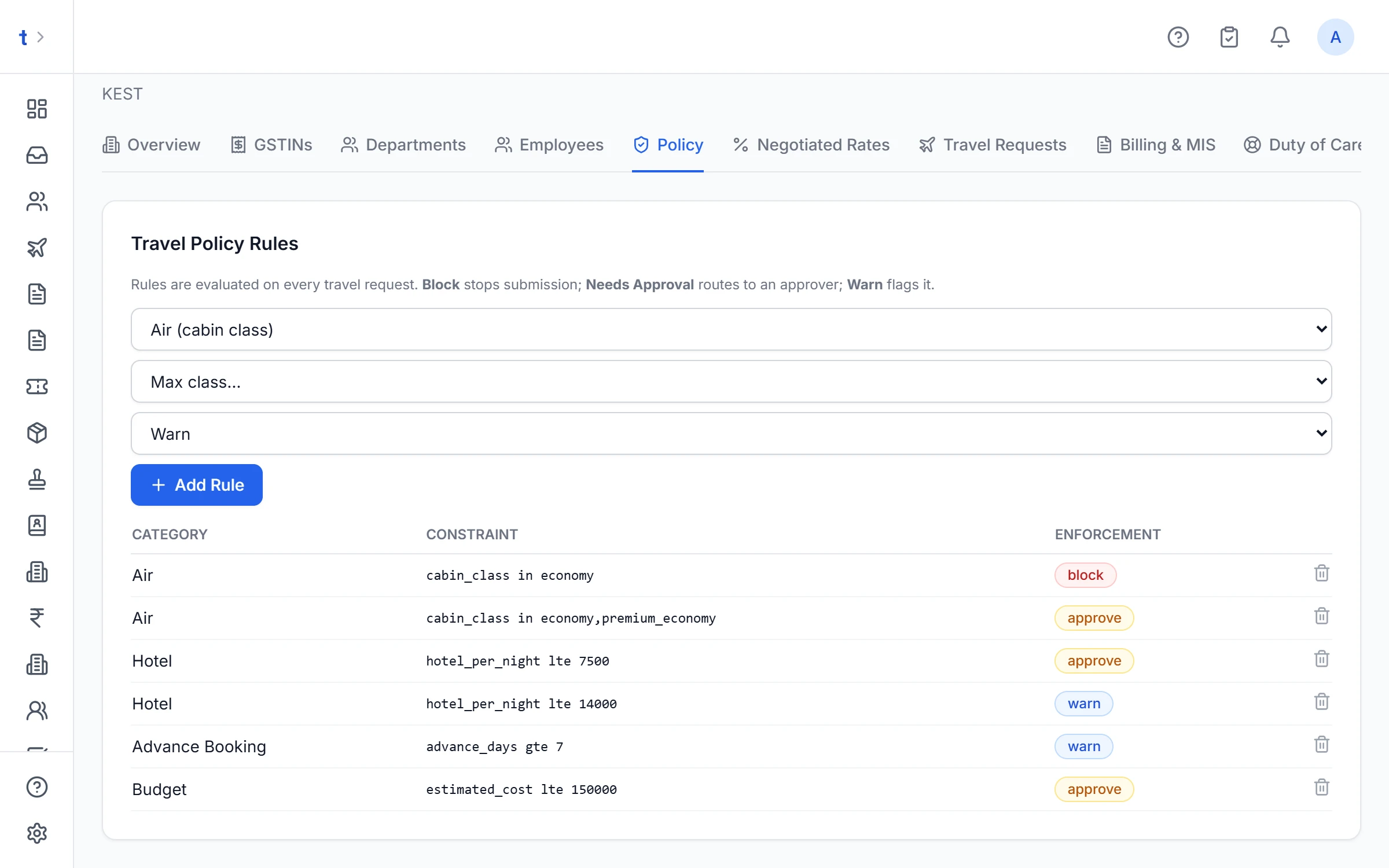
Block
The request can't be submitted until the breach is fixed.
Warn
The request goes ahead, with the breach flagged on it for everyone to see.
Route for approval
The request has to clear the approval chain before it can be booked.
Rules cover
- Cabin class
- Hotel limit per night
- Advance booking days
- Trip budget
Each rule can be scoped by
- Employee grade range
- Domestic, international or both
- Optional justification from the traveller
A request sent back for changes can be edited and resubmitted, with the approver's comment shown on it.
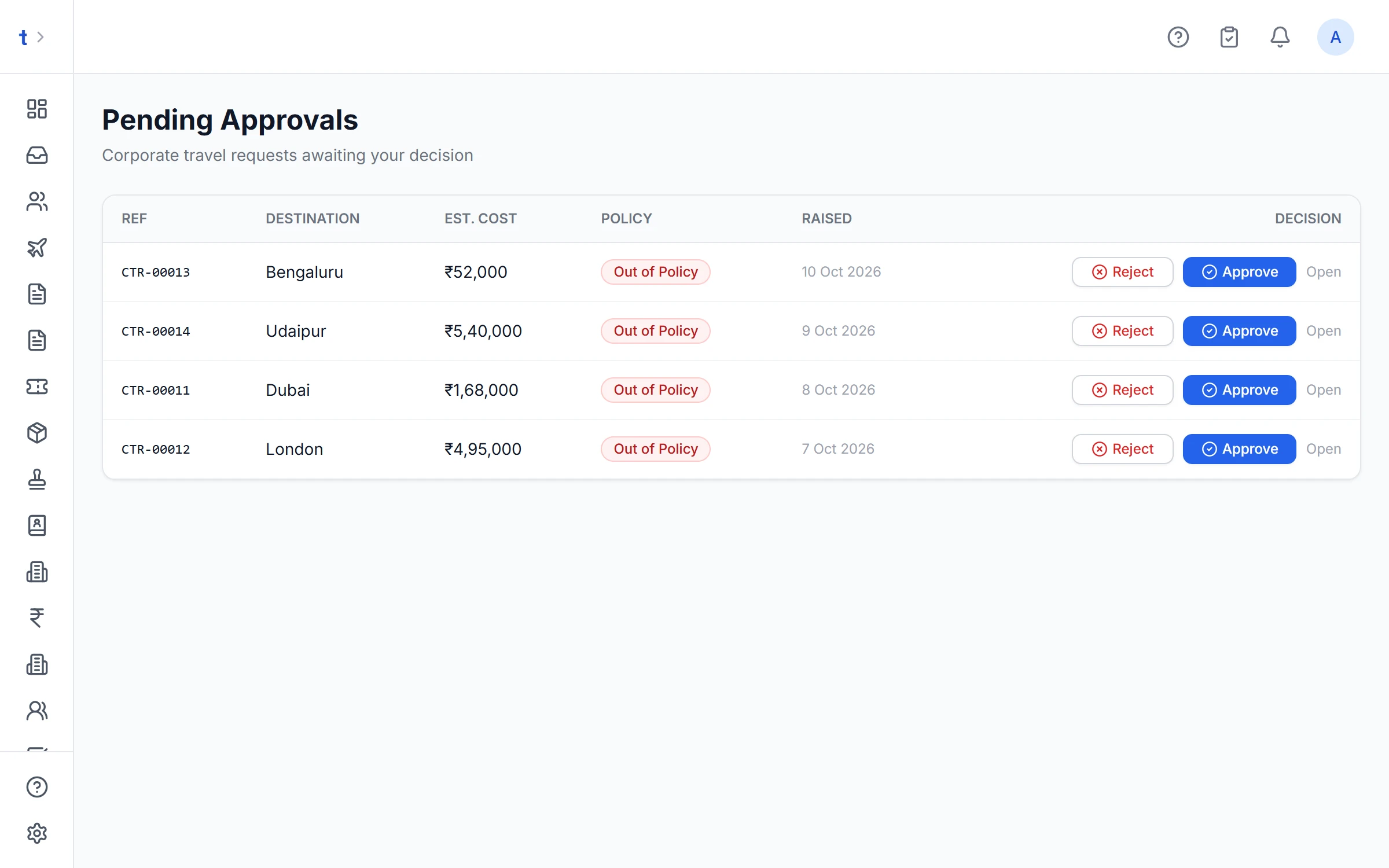
Approvals that don't get stuck.
Approvers see the traveller, dates, cost and any policy flags before they decide. When someone is slow, TourBrain chases them; when they're away, their delegate decides.
How a request is routed
Traveller's approver
Set on the employee's roster entry
Department approver
The department's default approver
Account approver
For the whole company
Each level can be someone at the client, deciding in their portal, or someone on your team. A person who holds two levels is asked once, and nobody approves their own request.
The approver whose turn it is can
- Approve
- Reject
- Send back
- Reassign
A reject or send back always needs a reason.
- WhatsApp coming soon
One-tap approval links
Approvers get an email with a secure link to approve, reject or send back without logging in. Each link works once and expires after 7 days.
Reminders and escalation
A reminder goes to the approver after 24 hours. After 48 hours undecided, the step escalates: to the company's portal admins for their approvers, to your owners and admins for yours.
Delegation
An approver going on leave sets a delegate and the dates. Requests in that window go to the delegate.
Your team hears back
When the client approves, rejects, sends back or withdraws a request, your team gets an in-app, push and email notice.
The client picks from your quotes
- A pick that's much dearer than what was approved goes back for approval
- So does a pick that breaks policy or goes over budget
Once it's booked, they can see it
- The requester and travellers are told when it's booked and when new documents arrive
- The trip view leaves out prices, margins, your internal notes, and passport and visa scans
A billing centre their finance team can use without calling you
- Outstanding against their credit limit, aged 0–30, 31–60, 61–90 and 90+ days
- An email and portal notice whenever you issue an invoice
- The same statement and exports on your side of the account
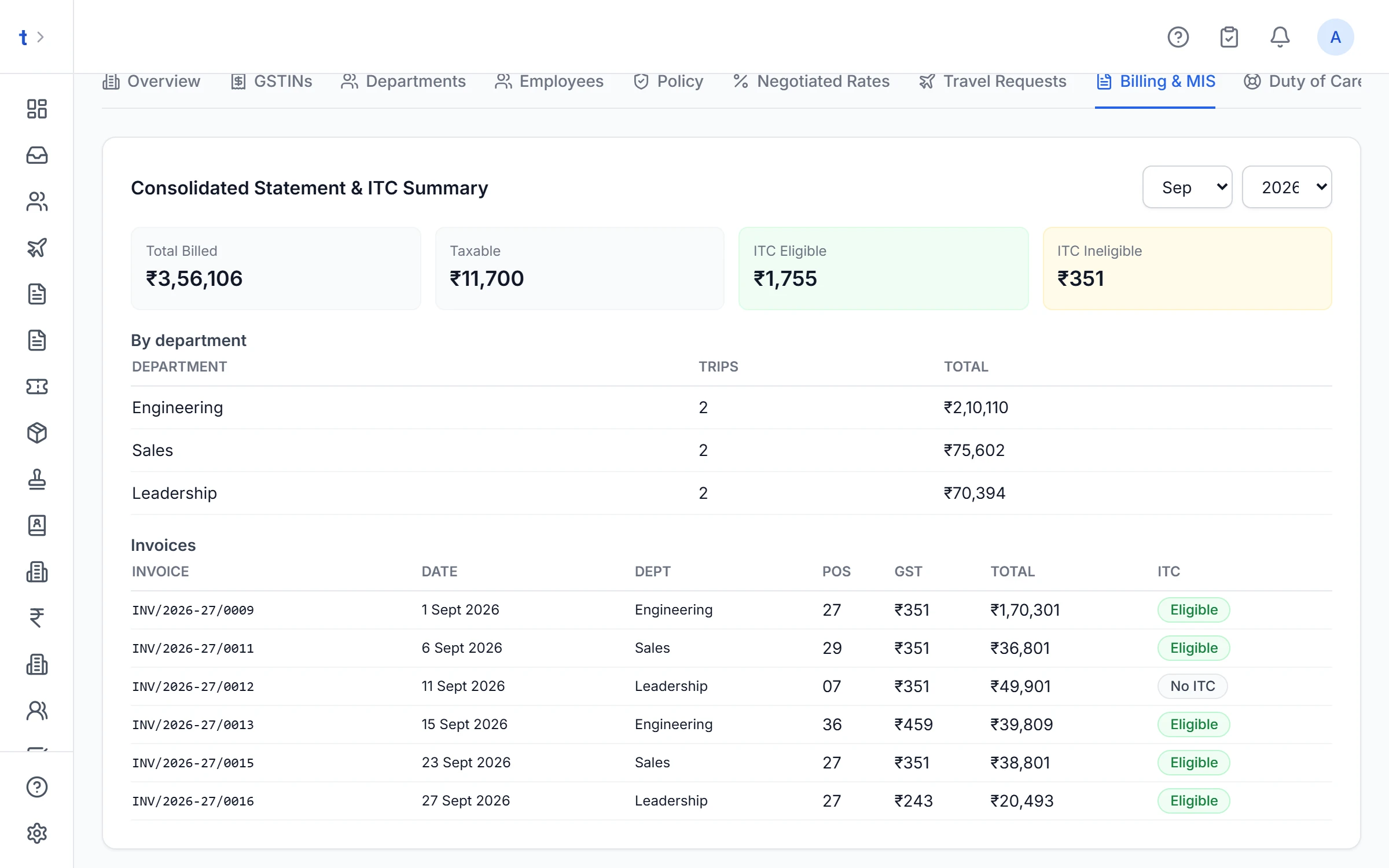
One GST invoice for the whole month
The right GSTIN on every booking, and ITC they can reconcile
Store every state GSTIN the client holds. Each booking carries the GSTIN it's billed to, taken from the department or the company's primary GSTIN, and you can change it. Its invoice is marked ITC-eligible only when that GSTIN is registered in the place-of-supply state.
- An ITC register per client GSTIN per month, with invoice number, date, place of supply, taxable value and CGST, SGST or IGST
- A GSTR-2B-style export as CSV or Excel, for the client to match against their 2B
- Available in the client's portal and on your side of the account
How each invoice is marked
An example client with GSTINs in Maharashtra and Karnataka. Each booking is billed to one of them.
| Billed to GSTIN in | Place of supply | Marked |
|---|---|---|
| Maharashtra (27) | Maharashtra (27) | ITC-eligible |
| Karnataka (29) | Karnataka (29) | ITC-eligible |
| Maharashtra (27) | Goa (30) | No ITC |
Credit control that holds.
For clients on credit, what they owe plus what's booked but not yet invoiced is checked against their limit before you book. The credit centre shows every account's position in one place.
Limits checked at booking
A booking that would take the client past their limit is stopped. An owner or admin can go ahead, with a reason that stays on the record.
Alerts before it's a problem
Your team is alerted when a client reaches 80% of their limit, and again when they go over it.
Hold on overdue accounts
Set a number of days per client. Once an invoice is overdue by more than that, new bookings stop until it's paid or an owner or admin overrides.
Payment reminders
Overdue invoices get reminder emails at 3, 7 and 15 days past due, to the client's admins, travel desk and billing email.
Budgets per department, and reports they can export
- Spend by department, by employee and by month
- Policy compliance, with the requests that broke a rule
- Top routes and destinations, and who is travelling now
- Budget usage for every department
- Export to CSV or Excel, from the portal or from your side
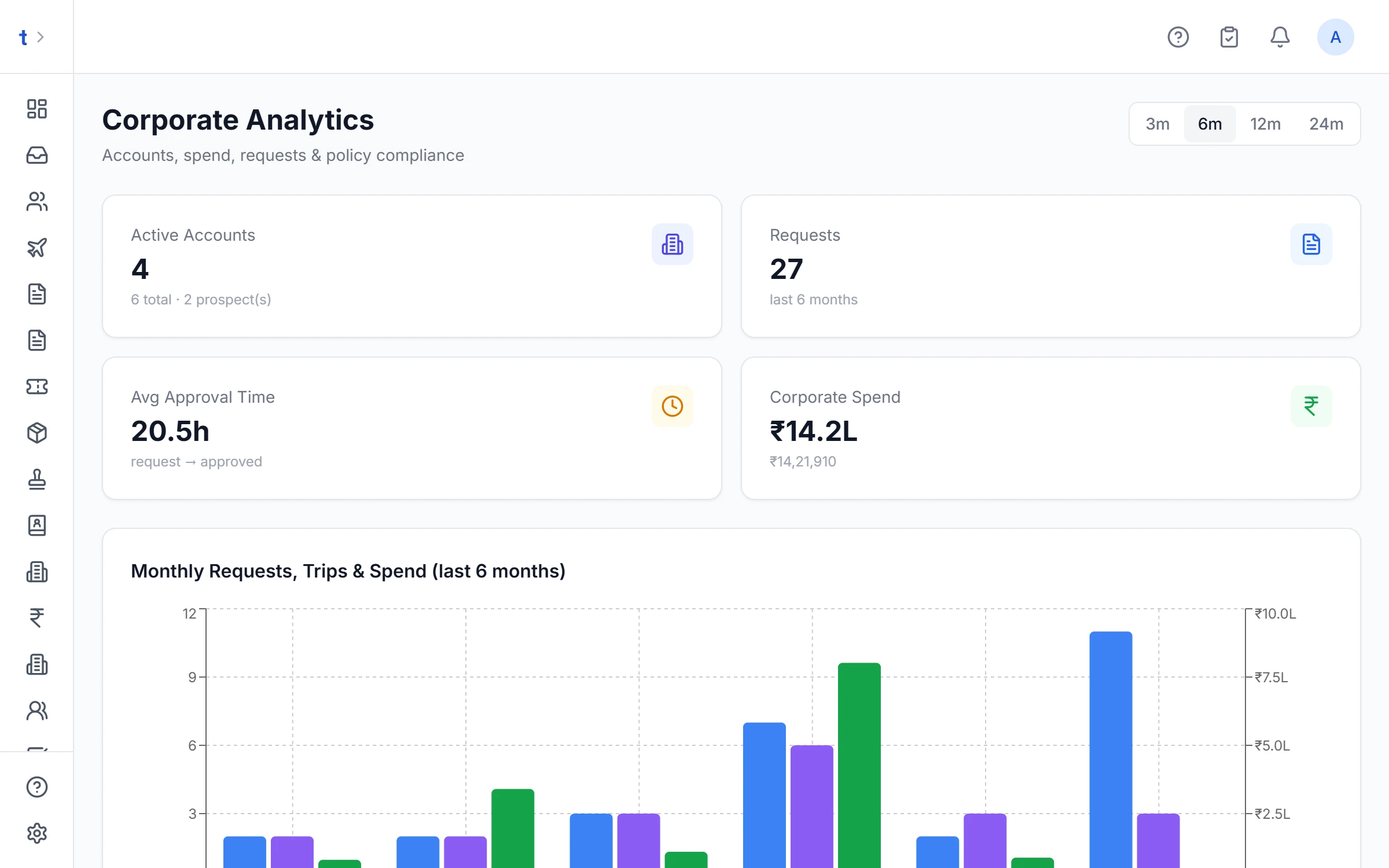
Across all your corporate clients, the analytics page shows spend, top accounts, approval turnaround and policy compliance.
Know who is where, and check they're safe.
A board shows every traveller on a booked trip that's under way today or starts in the next 7 days, group members included, with where they are, how to reach them and their emergency contact.
- Send a safety check to everyone in a city or country, with a one-tap “I'm safe” or “I need help” link
- “I need help” alerts your team and the client's travel desk straight away
- Mark a traveller yourself after you've reached them by phone
- Your team or the client's travel desk and admins can send one
Safety checks go by email today. WhatsApp is coming soon.
After a safety check goes out
Every traveller in the place gets a one-tap link. The board shows where each of them stands.
Safe
Tapped “I'm safe”
Needs help
Your team and the client's desk are alerted
No reply
Call them, then mark them yourself
Unreachable
There was no way to send them the link
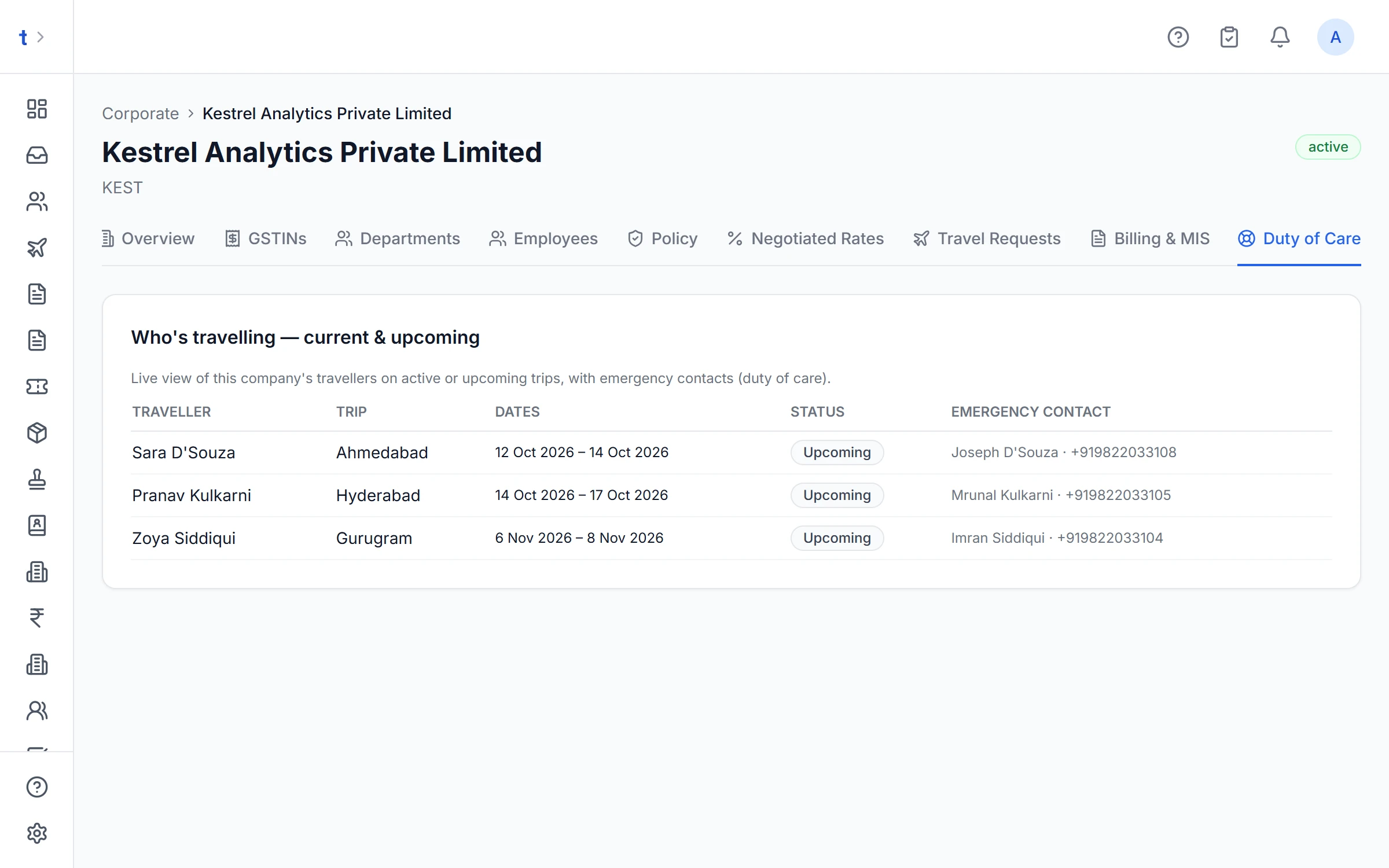
Your side of the desk.
Every corporate client is a standing account with a code, PAN, credit terms, SLA tier, departments, GSTINs and an employee roster. Your team works their requests from one queue.
An SLA and a named consultant
Each request has someone on your team assigned, and the client sees who their travel consultant is. Standard requests are due in 24 hours, priority in 4, and the clock only runs while it's your move.
One queue, overdue first
Your corporate queue puts overdue requests at the top, then what's due soon. Your team is notified when a request passes its due time.
Traveller profiles and passports
Date of birth, passport details, frequent-flyer numbers, meal and seat preferences and emergency contact on each employee. Employees keep their own profile up to date in the portal.
Passport expiry alerts
Passports expiring within 6 months show up on the client's portal home and on your account overview.
Roster in minutes
Add employees with their code, email, grade and department by pasting CSV rows; pasting again updates the people already there. Approvers are set per employee or per department.
Negotiated rates, applied for you
Record each company's deal as a discount by category, with an optional supplier and dates. The best valid rate is applied when you quote them, unless you enter a discount by hand.
A prospecting pipeline for the next client
Guides
From holiday desk to corporate TMC
A playbook for small agencies: onboarding, travel policy, approvals, monthly GST billing, credit, MIS and duty of care.
Read the guideGST input tax credit on corporate travel
Why the billing GSTIN decides whether your client can claim credit: place of supply, hotel stays and GSTR-2B matching.
Read the guide
Questions agencies ask about corporate travel
What is the best software for a travel agency to manage corporate clients?
One that runs the whole corporate loop, not just bookings: a client portal for trip requests, policy checks, approvals, a monthly GST invoice to the right GSTIN, credit control and reports. TourBrain's Corporate / TMC desk does this for Indian agencies, with a portal that carries your agency's name and logo.
How do corporate travel approvals work in TourBrain?
A traveller or the client's travel desk raises a trip in the portal and sees the policy result (block, warn or needs approval) as they fill it in. The request goes to the right approver, who can approve, reject or send it back from a one-tap email link without logging in. Reminders go after 24 hours and the step escalates after 48. WhatsApp approvals are coming soon.
Can a corporate client claim GST input tax credit on travel booked through TourBrain?
TourBrain records the billing GSTIN on each booking so the invoice carries the client's GSTIN for the right state, keeps an ITC register per client GSTIN per month, and exports a GSTR-2B-style file for the client to match. Whether credit is available on a given service is for the client's chartered accountant to confirm.
Can TourBrain send one consolidated GST invoice a month to a corporate client?
Yes. Preview and generate one tax invoice for the month with a line for each booked trip not yet invoiced. Trips in other currencies and overseas packages with TCS are listed separately so you can bill them on their own invoice.
Does TourBrain book flights or connect to a GDS?
No. TourBrain is not a GDS or online booking tool. Your team books with your usual suppliers, and TourBrain runs everything around the booking: requests, policy, approvals, quotes, billing, credit, reports and duty of care.
Which plan includes the corporate desk?
The Corporate / TMC desk and its client portal are on Professional (₹1,099 per user a month plus GST) and Enterprise. The free trial runs on Growth, which doesn't include it, so book a demo to see it on your own clients.
Book a corporate-desk demo
We'll walk you through a corporate account end to end: the client's portal, approvals, quote options, the monthly GST invoice and the statement.